File Manager
The File Manager allows developers to manage the file structure of their application directly within the IDE. It provides access to all folders and files located under the /webapp/ directory, which includes assets, templates, and static resources used by the application.
You can use it for uploading and organizing additional files such as stylesheets, JavaScript scripts, images, and documents—without requiring direct access to the file system or deployment infrastructure.
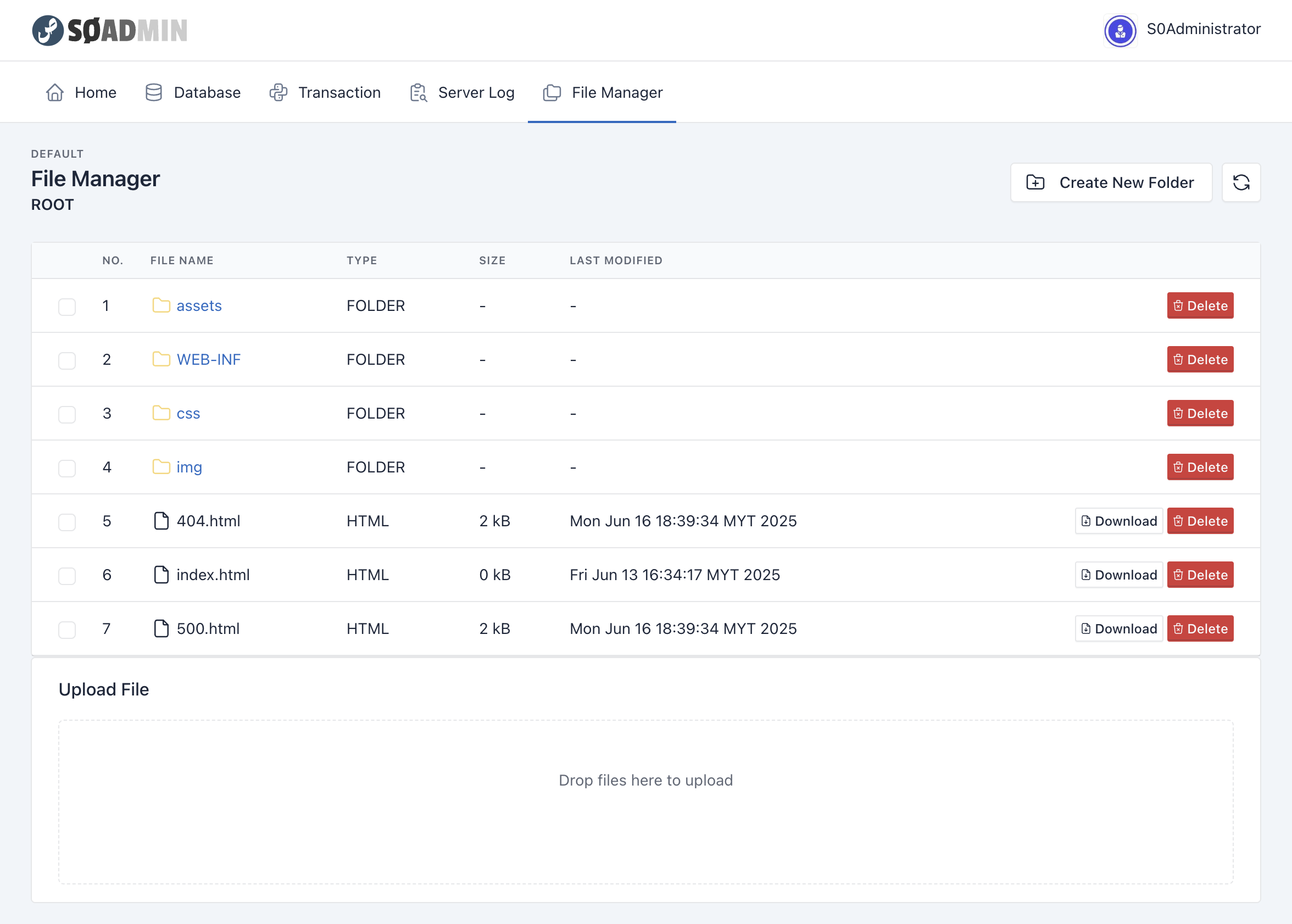
Overview of Features
1. Directory Navigation
- Browse through the
/webappfolder and its subdirectories. - Expand folders to view their contents and file structure.
- Easily locate and manage static resources like HTML, CSS, or JS files.
2. File Upload
- Upload new files (e.g.,
.css,.js,.jpg,.pdf, etc.) to any directory. - Supports multiple uploads in one action.
- Uploaded files are immediately accessible to the application through relative URLs.
3. File Management
- Rename or delete existing files.
- Create new folders or move files between directories.
- View or edit plain text files such as
.html,.txt,.json, or.xml.
Common Use Cases
- Uploading Assets: Add custom stylesheets, JavaScript libraries, or images used in HTML templates.
- Serving Static HTML: Store and serve standalone
.htmlfiles outside the transaction system. - Documentation: Upload terms of use, privacy policy, or help documents as downloadable resources.
- Custom Fonts or Icons: Add font packs or SVG icon files as needed by your design.
Did You Know?
ZIP File Upload & Extraction
When you upload a ZIP archive through the File Manager, it will appear in the file list with an Unzip button next to it. Clicking this button will extract the contents of the ZIP file directly into the current folder.
This feature is useful for:
- Uploading entire directories of assets (e.g., CSS frameworks, JavaScript plugins).
- Migrating static sites or bulk resource files.
- Quickly setting up new asset packs without manually uploading individual files.
After extraction, all files and folders inside the ZIP will be immediately accessible under the current directory in /webapp.