Transaction Editor
The Transaction Editor in SØAD Online IDE is a central feature that allows you to create, edit, and manage transaction files directly in your browser. A transaction consists of Jython code (controller logic) and associated HTML view templates, which are tightly coupled through SØAD's convention-based routing system.
This editor is designed to streamline development by offering an intuitive interface, syntax highlighting, and automatic file management—all without requiring local development setup.
This guide provides step-by-step instructions on how to create a new Transaction using the Transaction Editor. It covers the Transaction creation process, available fields, and an overview of the code editor interface.
Creating a New Transaction
To create a new Transaction, follow these steps:
-
Navigate to Home > Application > Open > Transaction > Create New Transaction.
-
Click on Create New Transaction to initiate the process.
-
A modal will appear where you can enter the Transaction details.

Create New Transaction
Transaction Details
Upon initiating the creation of a new Transaction, a modal window will be displayed:
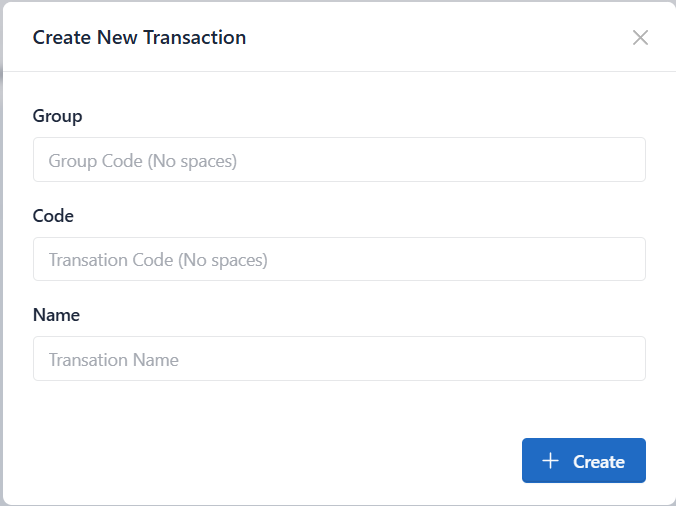
Create New Transaction Modal
Transaction Fields
-
Group Transaction
This field allows you to categorize the Transaction into a specific folder for better organization. -
Code Transaction
The Code Transaction serves as a unique identifier for the Transaction, facilitating efficient tracking and management. -
Named Transaction
This field is used to specify the name of the Transaction.
Once the details are filled in, confirm and proceed to create the Transaction.
Code Editor and Interface
After successfully creating the Transaction, the Transaction code will be listed in the Transaction list explorer.
Click on the Transaction code to open the Transaction in Code Editor Interface:
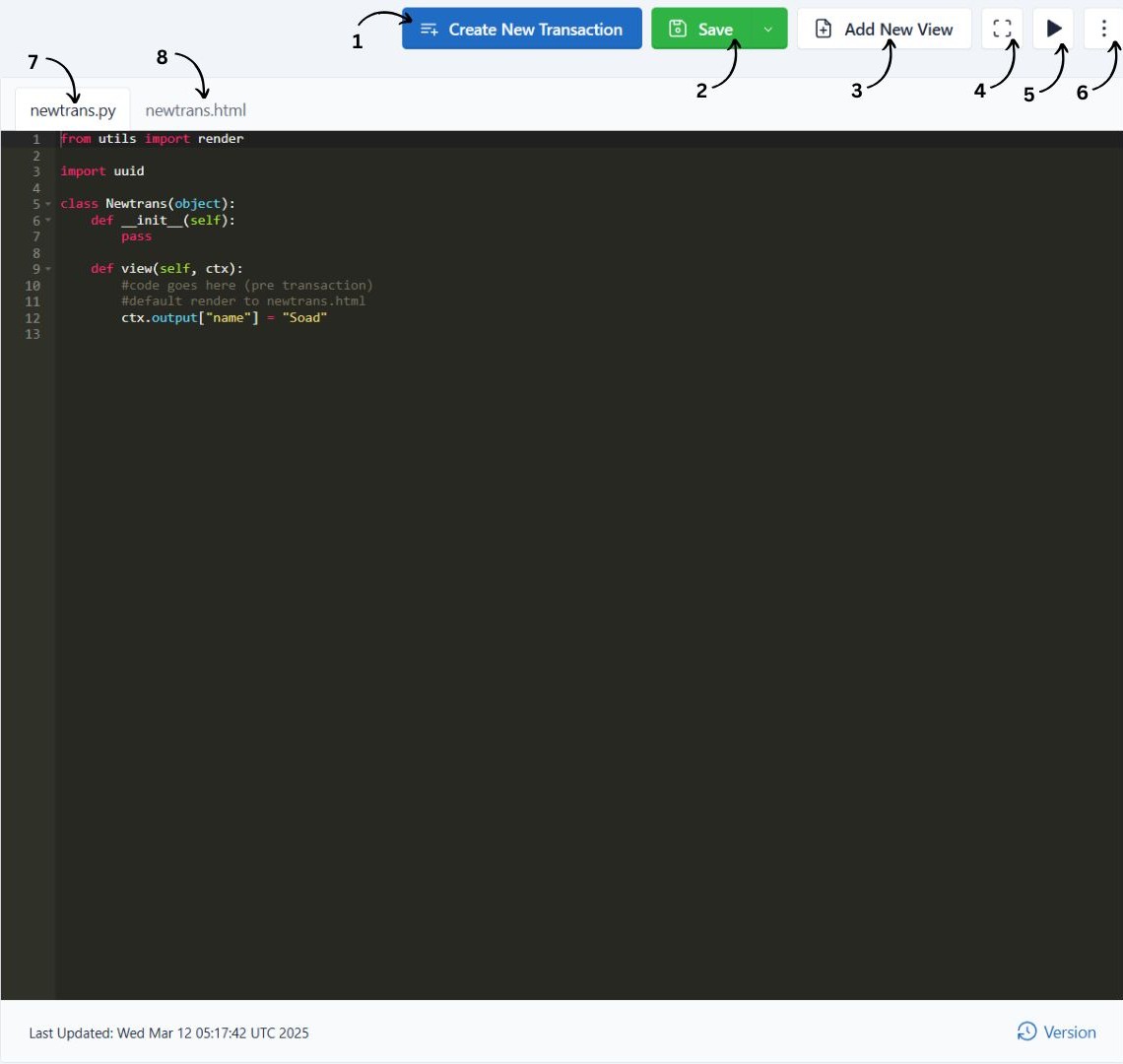
Code Editor Interface
Code Editor Buttons and Functions
Primary Functions
The code editor provides a range of options to manage and develop the Transaction:
-
Create New Transaction
Initiates the creation of another new Transaction. -
Save
Saves the Transaction or the current code progress. -
Add New View
Allows users to add an additional view (HTML) to the Transaction. -
Fullscreen
Expands the code editor to full-screen mode for an enhanced viewing experience. -
Run
Executes the Transaction and displays it in a new tab.
Additional Options - Hamburger Menu
The Hamburger Button provides access to more features:
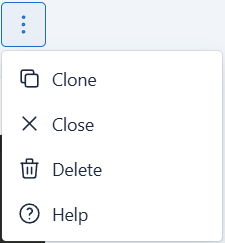
Hamburger Button
- Clone: Duplicates the Transaction for easier modifications.
- Close: Closes the currently opened Transaction.
- Delete: Permanently removes the Transaction.
- Help: Opens the documentation for guidance on using Transactions.
Code Editor Sections
The Code Editor is divided into two main sections:
1. Transaction Code Editor (Backend) No.7
This section is dedicated to the backend logic of the Transaction.
- The backend logic includes data processing, database operations, and business logic.
- The language used is Jython.
- Code snippets and templates are available to help developers quickly implement common functionalities (e.g. Model data setter).
2. Transaction Code Editor (Frontend) No.8
This section is dedicated to the frontend logic of the Transaction.
- The frontend logic includes HTML, CSS, and JavaScript.