Versioning in SØAD
SØAD includes a built-in versioning system that automatically tracks changes to each transaction. Every time a transaction is modified and saved, a new version is recorded. This mechanism acts as a lightweight backup and change history, making it easy to review past edits or recover from accidental overwrites.
In addition to version tracking, SØAD provides a Diff Mode feature that allows developers to compare different versions of a transaction side by side. This helps during code reviews, debugging, or identifying when and how changes were introduced.
Accessing Version History
Version management is integrated into the Transaction Panel within the SØAD Online IDE. Here’s how it works:
Transaction Panel Overview
The Transaction Panel shows the current transaction list and provides access to versioning features.
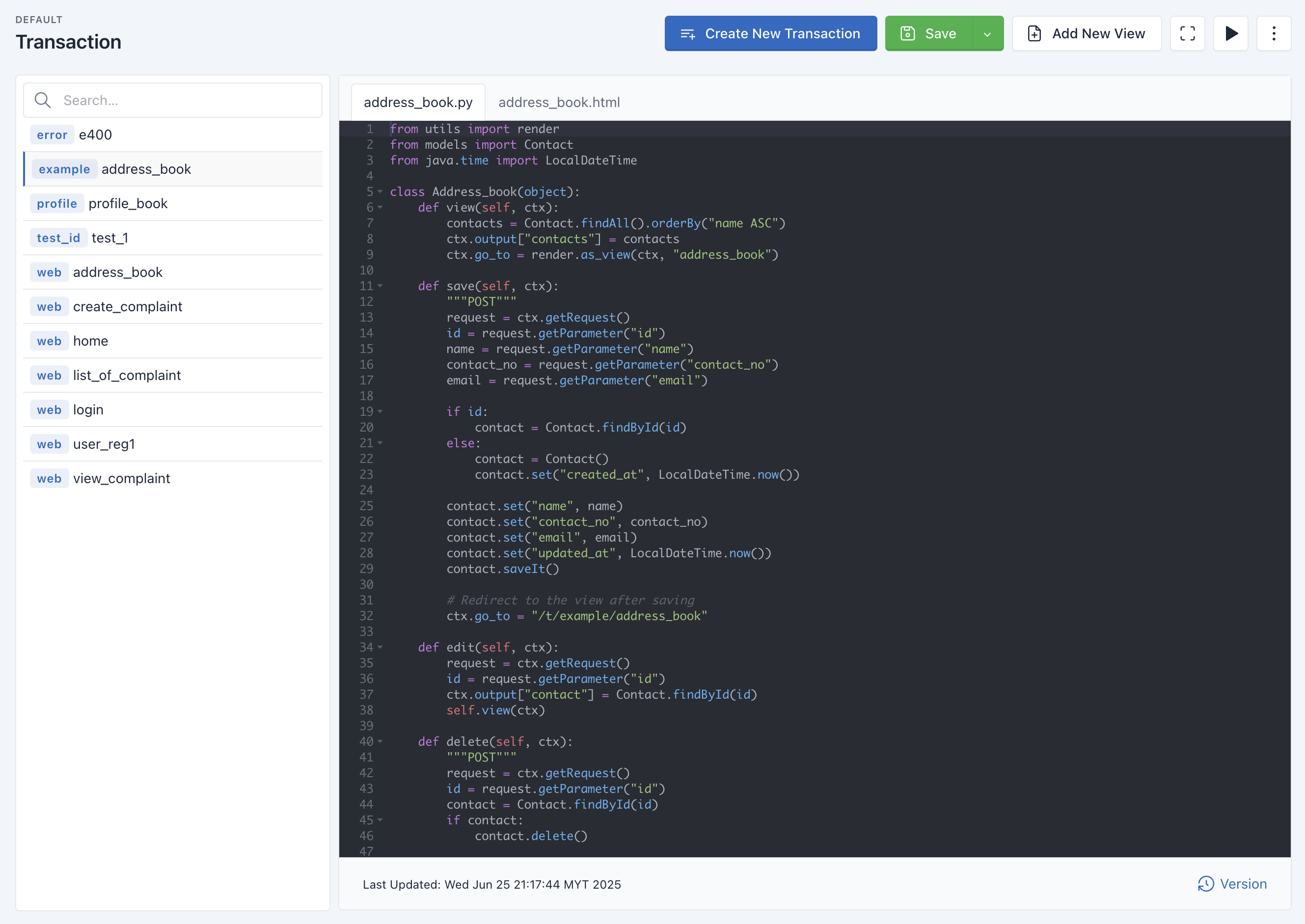
Transaction Panel
- Last Updated: Located at the bottom-left of the panel. Displays the most recent modification timestamp.
- Version Button: Located at the bottom-right. Clicking this button opens the Versioning Panel, which lists all available versions of the current transaction.
Working with the Versioning Panel
The Versioning Panel offers a chronological list of all saved versions of a transaction, including metadata like timestamps and author names.
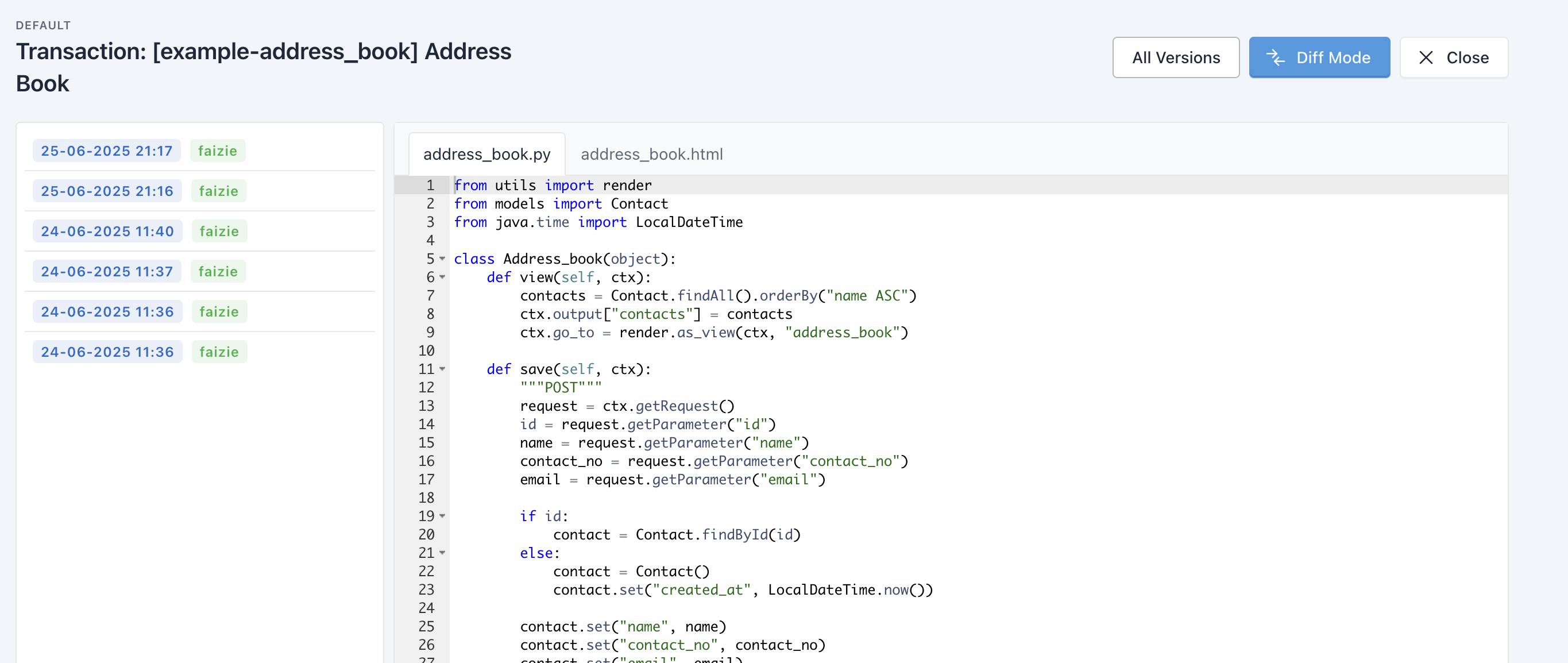
Transaction Panel
Key Components
-
Version List
- Displays versions with associated date and author.
- Click a version to preview its contents.
-
All Versions
- Button located at the top-right of the Versioning Panel.
- Displays a complete list of all stored versions for the current transaction. By default, it shows versions with label only.
-
Diff Mode
- Also accessible via a button at the top-right of the panel.
- Allows you to select two versions for side-by-side comparison.
Using Diff Mode
Diff Mode is designed to help developers visually compare two versions of the same transaction.
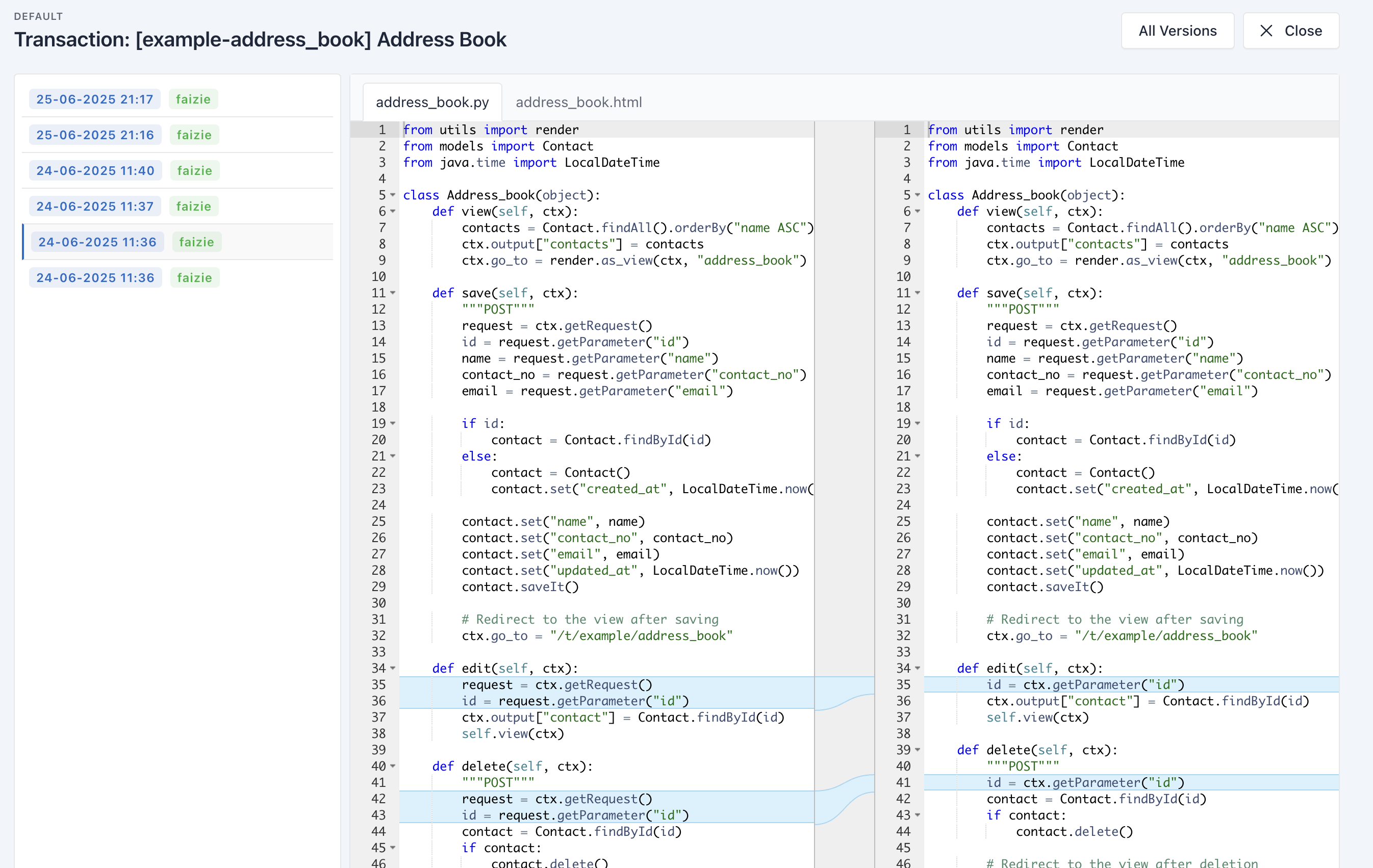
Diff Mode
How Diff Mode Works:
- Displays two versions side by side for direct comparison.
- Highlights differences in teal color, making it easy to spot changes.
- The current version is displayed on the left side of the panel.